What if a light could listen?
Start with a question. Pick a mission that gives curiosity somewhere to go.
Find the sparkA little code. A real-world question. A wonderful “I made that!” Kids Engine brings lessons, creative projects, and hands-on sensor adventures together for children ages 8 to 12 in teacher-led STEAM workshops.
One small connection. A whole new idea.
Simulated illustration · light sensor on P0/P14
Start with a question. Pick a mission that gives curiosity somewhere to go.
Find the sparkChoose a sensor, follow its socket guide, and build a little block-code magic.
Meet the Build LabTest in the simulator, save what happened, and use teacher feedback to make it better.
See learning take shapeA lesson sparks a question. A child builds a response. A teacher sees the thinking behind it. Kids Engine connects that whole journey: curriculum, code, workshop parts, private portfolios, and feedback.
Make the learning process visible: understand a challenge, act on it, test what happened, explain the result, then revise with purpose.
Lessons, coding, physical materials, and classroom coordination belong in the same story. Children can keep creating while teachers keep the context.
Young makers lead the discovery. Teachers, facilitators, curriculum coordinators, and guardians each get a purposeful role, with access suited to their responsibilities.
Young makers lead the discovery. Adults guide, support, and protect the learning experience.
Explore missions, build and test ideas, save progress, and use teacher feedback.
Your workspaceYour own work and approved group projects.
Plan workshops, choose parts, guide learners, and review their work.
Your workspaceYour assigned workshops and learners.
Review published lessons, learning objectives, and materials.
Your workspacePublished curriculum, with learner records kept private.
Manage consent, privacy choices, and approved sharing for your child.
Your workspaceYour linked children only.
Support workshops, manage organizations, and respond to privacy requests.
Your workspaceAccess matched to each responsibility.
Kids Engine supports both structured human-centered missions and open-ended building in the same workshop.
Build Something lets a child or team start with a blank canvas or a small optional starter, choose supported parts, add or remove compatible parts, code, test, save, and reopen while the workshop sign-in remains valid.
Mission Control can open Free Build for everyone or selected groups without changing curriculum first.
Free Build uses its own project and policy path, so a workshop can keep making when a mission is absent or unavailable.
A team Free Build is one team project with its checked-in participants, not one project or one coding claim per child.
Free Build projects and participation stay separate from mission submissions, completions, and learning outcomes.
The software path is implemented. The preflight review does not validate the setup; the live Test My Parts check is in Build Lab. Physical hardware and participant validation remain next steps.
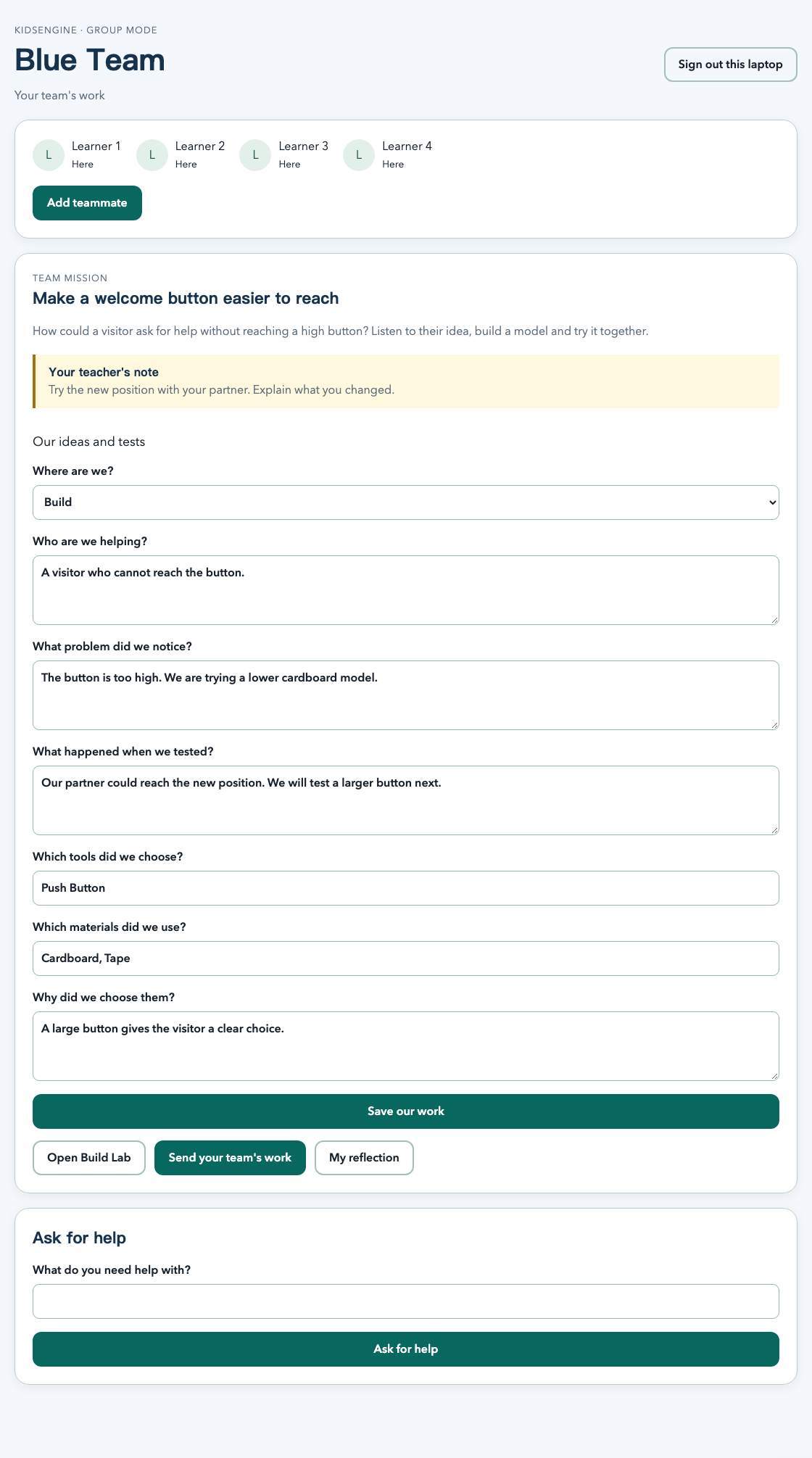
Children share a laptop and build in a team workspace while each child checks in individually.
Teachers organize teams and reuse Group Sets across workshops. Each child checks in with their own details, including teammates who arrive later.
Mission progress, builds, submissions, feedback and revisions belong to the team. Attendance and optional personal reflections stay with each child.
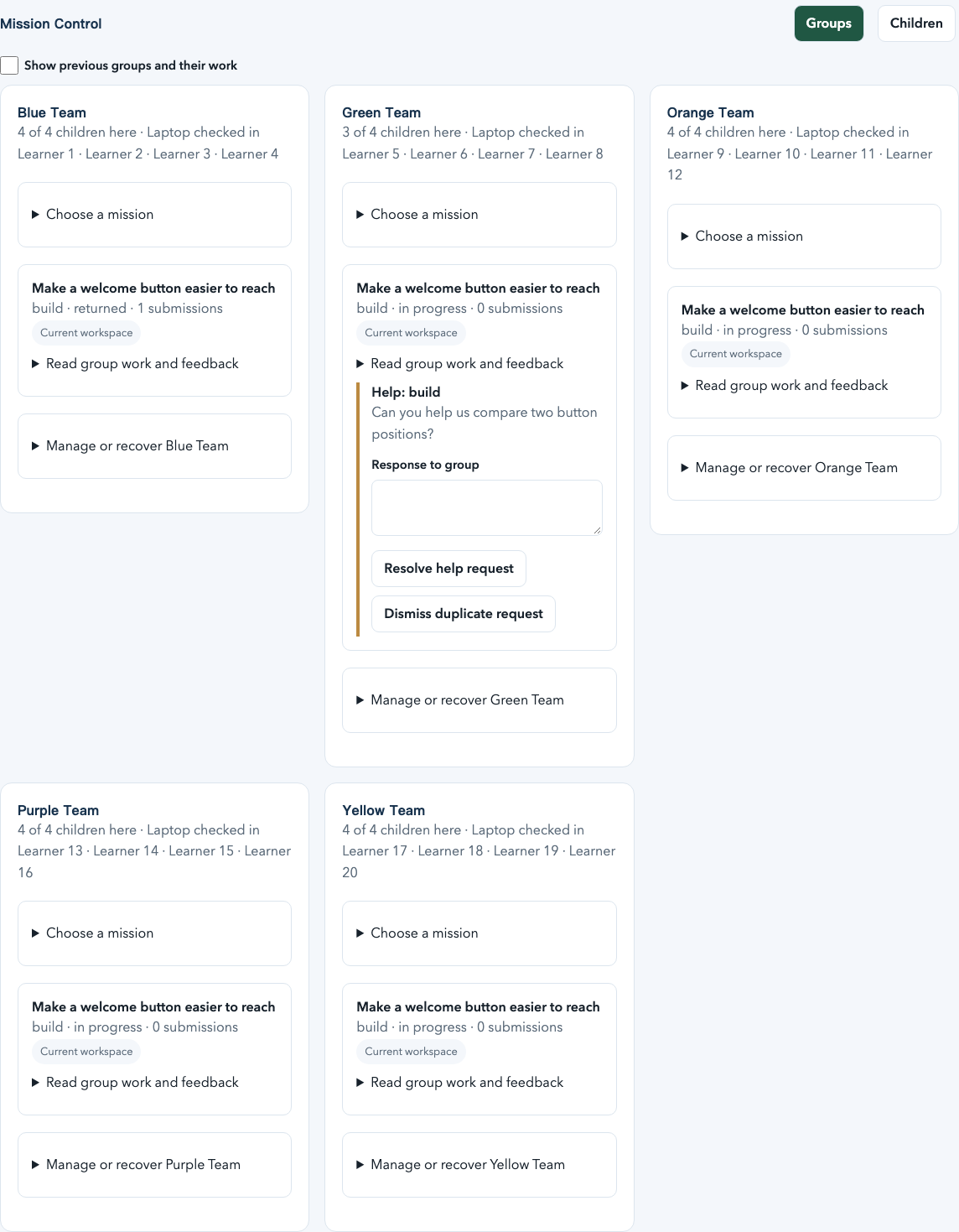
Mission Control separates Groups and Children, so facilitators can follow team progress, check attendance and see who needs help.
Four children and one team submission means four participating children and one submission.
Shared laptop activity never tells us which child typed, chose a block or clicked Send. A team project and an individual reflection tell different parts of the learning story.
Human-centered design gives making a purpose: understand someone’s needs, imagine possibilities, build a prototype, and improve it through feedback.
Our class needs help remembering when to water its plant.
Listen and observe. Define the need. Make and test an idea. Explain how it helps, then try again.
A mission frames a real-world problem, the people it affects, and a challenge worth exploring.
Clear objectives, instructions, materials, and reflection prompts guide each workshop.
Connect science, technology, engineering, arts, and mathematics through purposeful projects.
No premade kit is required. Teachers combine hardware, tools, materials and custom supplies, save a reusable plan, then prepare a copy for each workshop.
Add hardware, scissors, paper, recycled boxes and other useful supplies with their quantities.
Check required quantities, optional supplies and alternatives. Add available missing items while planning.
Open the session when supplies are ready. Its saved materials stay with the assigned mission and the learner’s project.
micro:bit is the main hardware platform, with more platforms planned.
No. Choose tools that support the people, problem and evidence in the mission. Paper models and ordinary materials can be enough.
A reusable kit is a starting plan. Workshop copies stay independent, and a session keeps the materials saved when it was first opened.
Count the supplies, check the exact mission and team arrangements, then open the session after preflight.
Follow the kit and materials guideEach lesson has a primary STEAM area, while workshop planning can connect primary and secondary domains. The aim is not to repeat labels, but to show which disciplinary lens guides the work and how domains combine in a project.
Observe systems, form explanations, and test change against evidence.
Use computing, sensors, and tools as understandable parts of a solution.
Define constraints, prototype, test, and improve a design.
Shape meaning, expression, communication, and experience through making.
Measure, model, compare, and reason with patterns and quantities.
micro:bit is the main hardware platform, with more platforms planned.
Turn a challenge into a project, work together, and explain what you made.
Open Workshop Missions review surfaceCreate with blocks, connect supported parts to simulator ports, and explore output, board readings, and pins in one workspace.
Find a part with search and category filters, then drag it to a compatible simulator port. Starter blocks appear with that port already selected. You can also select the part and choose a port.
Open public Build LabSave attempts, reflect on results, and improve with teacher feedback.
Write your blocks, connect supported parts, and see how your idea responds.
Blockly and the simulator stay the same height, with the simulator scrolling inside its panel. Resize or collapse it to make room for blocks. Grouped toolbar buttons and a visible real micro:bit status keep run, save, and pairing actions easy to find.
The four shield interfaces are P0/P14, P1/P15, P2/P16, and I2C. Connected parts show an icon, name, and short cable picture. Select a port to try its part in one compact controls panel.
The area below your code stays open with Console, Board Readout, Pins, and Parts tabs. Read messages, compare aligned board and pin readings, or search and filter parts. The tabs share one resizable height and keep their state when you switch.
Missions, Free Build, and the public playground use the same coding workspace. Team projects keep their shared ownership. Port pictures show saved connections; real-device pairing and physical checks are separate.
Clear language, flexible layouts, and thoughtful controls help more children take part.
Translated interfaces and right-to-left layouts make room for different languages.
Keyboard navigation, reduced motion, readable text, and layouts that adapt to smaller screens.
Children’s work starts private. Sharing with approved groups follows consent and adult review.
Manage consent, privacy choices, and approved sharing for your child.
Your assigned workshops and learners.
Published curriculum, with learner records kept private.
Students learn and explain. Teachers guide and review. Curriculum teams shape the learning.
Lessons, coding, physical materials, and classroom coordination belong in the same story.
Explore the tools that carry an idea from a question to a creation.
Purposeful challenges, clear learning objectives, and materials for every STEAM area.
Create with blocks, connect supported parts to simulator ports, and explore output, board readings, and pins in one workspace.
Choose parts for a workshop and see which lessons fit the available hardware.
Turn a challenge into a project, work together, and explain what you made.
Save attempts, reflect on results, and improve with teacher feedback.
Keep work private and share with approved groups through adult review.
Choose Build Something for open-ended coding and making without turning the project into mission completion.
Human-centered STEAM connects creative confidence with care for other people.
Listen and observe before deciding what to make.
Build, test, explain, and improve.
Keep work private and share with approved groups through adult review.
Shared language helps learners and adults work together.
The difference is not one feature. It is the way curriculum, making, code, evidence, and care for people operate as one continuous workshop system.
Children orient, act, test, explain, and revise instead of jumping from prompt to answer.
Lessons connect learning objectives with code, materials, and reflection.
Keep work private and share with approved groups through adult review.
Listen and observe before deciding what to make.
Planning, learner progress, and feedback stay connected to the workshop.
The market is fragmented across strong single-purpose tools. Kids Engine is positioned as the connective layer across guided STEAM curriculum, coding, real-world building, facilitator operations, family controls, and a learner's evidence over time.
This is a strategic positioning comparison, not a claim that every product is a direct substitute. It includes the coding platforms, physical kit ecosystems, classroom tools, and robotics products most likely to compete for the same instructional time, program budget, or facilitator attention.
| Product | Core offer | Learning and hardware | Teacher and family support | Evidence and progress | Product focus |
|---|---|---|---|---|---|
| Kids EngineHuman-centered STEAM | Curriculum, coding, making, and reflection in one guided workshop. | micro:bit is the main hardware platform, with more platforms planned. | Teacher guidance, guardian consent, and private group sharing. | Project reflections, revisions, and teacher feedback. | Connects designing for people with the full workshop learning journey. |
| Microsoft MakeCode + micro:bit ClassroomCoding and live class tool | Browser coding with blocks and text. | micro:bit programming, simulation, and extensions. | Live code sharing and debugging without student accounts. | Saved sessions and downloadable student code reports. | A focused environment for teaching micro:bit programming. |
| ScratchCreative coding community | Stories, games, animation, and remixing. | Block coding with physical-device extensions. | Teacher accounts, class management, and educator resources. | Projects, studios, and remix history. | Creative expression and a global coding community. |
| Autodesk TinkercadDesign and circuit simulation | Browser tools for 3D design, electronics, and coding. | Virtual circuits and programmable components. | Classrooms with class links, codes, and nickname access. | Saved designs and classroom project review. | An accessible starting point for digital design and electronics. |
| Strawbees ClassroomConstruction and creative robotics | Open-ended building with straws, connectors, and robotics. | Physical construction with micro:bit coding activities. | Curriculum resources, pacing guides, and teacher training. | Builds and reflections supported by lesson activities. | Flexible construction that connects engineering and creative play. |
| LEGO Education Computer Science & AIHands-on computing and AI | Grade-banded building kits and classroom lessons. | Motors, sensors, and Coding Canvas. | Teacher Portal, lesson presentations, and PIN-based access. | Projects saved locally on the learner device. | Integrated building materials and a structured CS and AI progression. |
| Sphero EduRobotics and classroom learning | Robot programming and guided lessons. | Draw, blocks, and text programming for Sphero robots. | Classes, family accounts, assignments, and progress tracking. | Saved programs and lesson progress in Sphero Central. | A robotics ecosystem with substantial classroom and family tools. |
| BirdBrain HummingbirdCreative robotics | Build personally meaningful robots from everyday materials. | micro:bit-based sensors, lights, motors, and multiple coding languages. | Free teacher courses, project guides, and curriculum resources. | Physical prototypes and design documentation. | Strong overlap in creative design, empathy, and cross-subject making. |
| Makeblock mBlock + mBot2Coding and educational robotics | Buildable robots with tutorials and classroom resources. | Block coding progressing to Python, with sensors and expansion modules. | Lesson plans, classroom packs, and educator resources. | Saved coding projects and practical robot challenges. | A progression from beginner coding to programmable robotics. |
| VEX GOElementary engineering and robotics | Construction kits and guided STEM Labs. | Build, code, test, and refine physical designs. | Teacher-led units, facilitation guidance, and activities. | Design sketches, builds, testing, and reflection. | Structured engineering design for collaborative elementary learning. |
Research refreshed September 8, 2026 from official product sources. Product focus is our positioning analysis.
Start with a lesson, explore the Build Lab, and discover what young makers can create.